The training editor
The training editor is where you build a training video, one scene at a time. Each scene has a layout, a presenter and a script. You can add questions, animate anything on the timeline, and export when the scenes are made.
Start a module
Section titled “Start a module”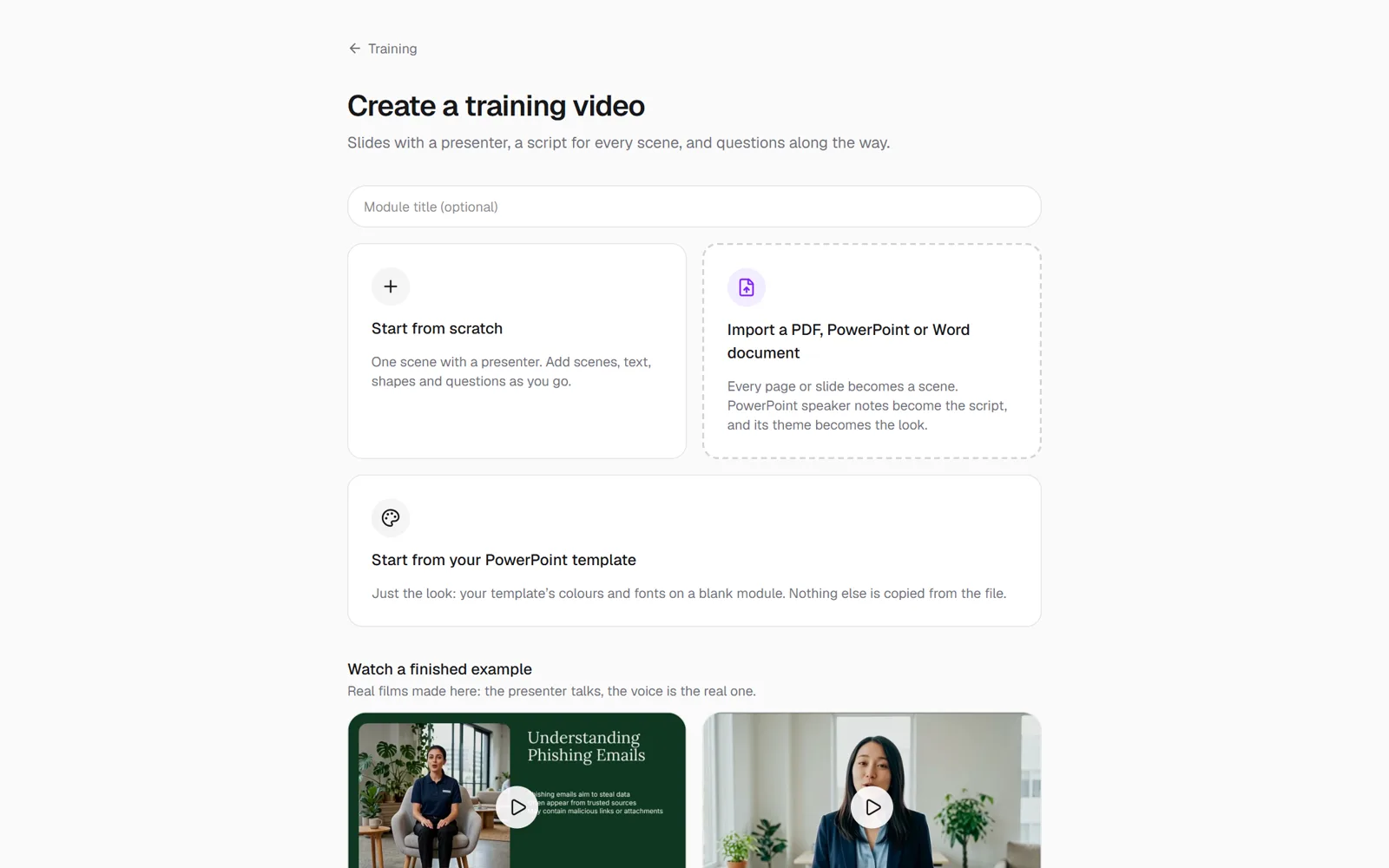
-
In the main menu, open Interactive Training, then Training Editor.
-
Type a Module title if you like, then choose one of these:
- Start from scratch: one scene with a presenter.
- Import a PDF, PowerPoint or Word document: every page or slide becomes a scene.
- Start from your PowerPoint template: your template’s colours and fonts on a blank module.
- Start from a template: press play to watch one first, then select Use this template.
Edit a scene
Section titled “Edit a scene”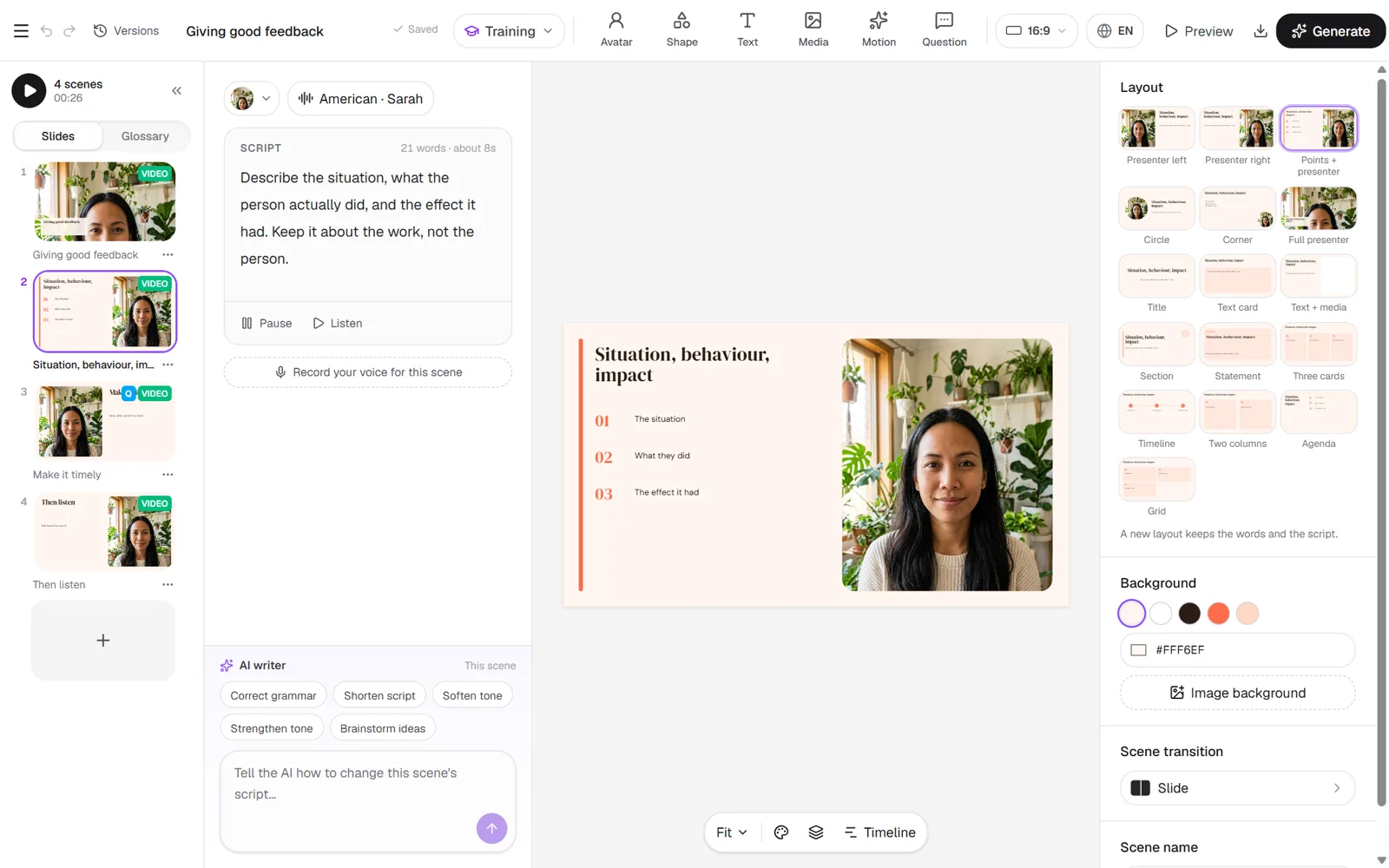
- Script: type what the presenter says. Select Listen to hear it in the chosen voice.
- Layout: choose where the presenter sits and where the words go.
- Avatar: choose a presenter from the library.
- Question: ask the viewer a question on this scene. Questions play on plans with Interactive Training.
Animate with the timeline
Section titled “Animate with the timeline”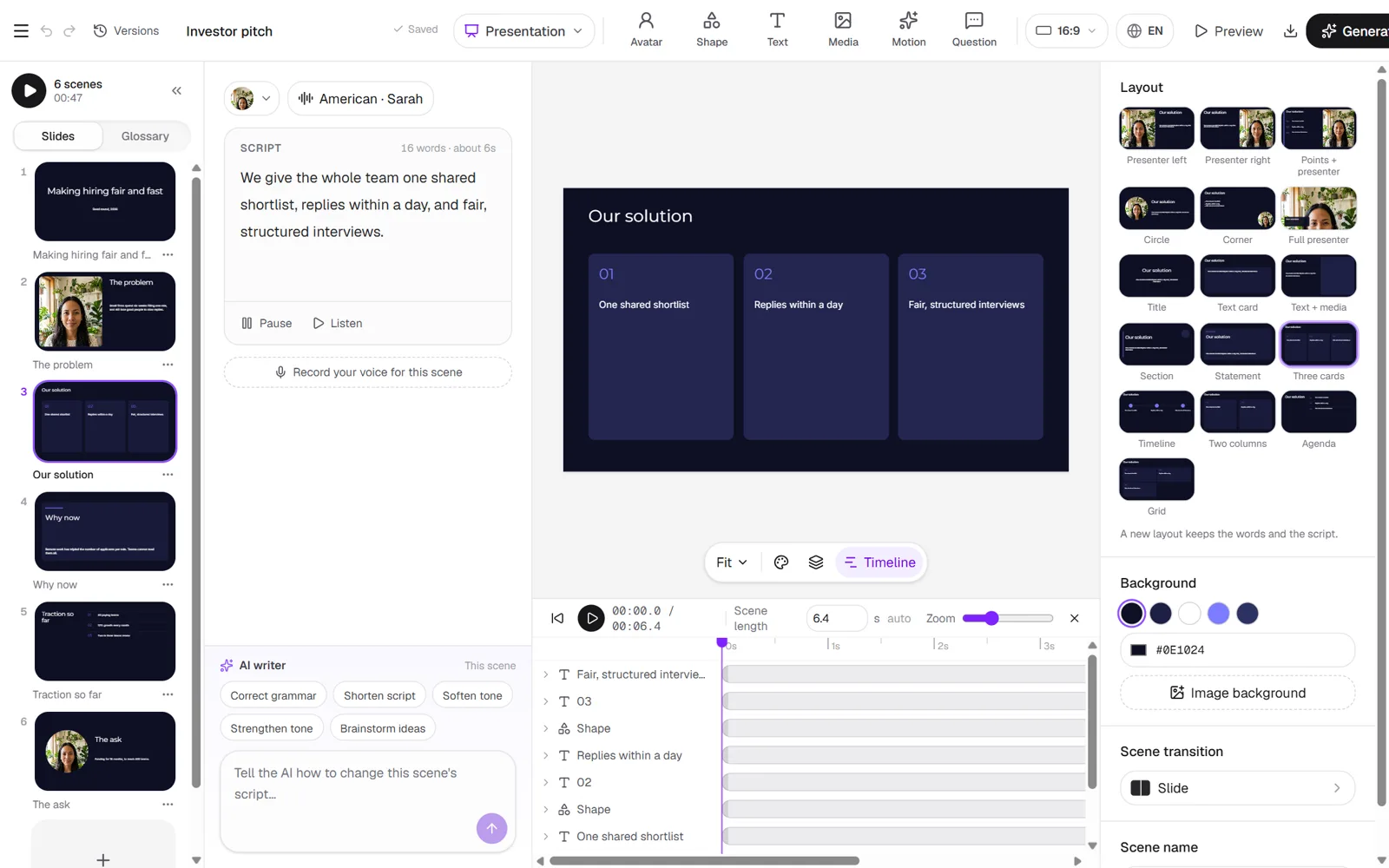
Select Timeline under the slide. Each item on the slide has a lane. Set the scene length, then add keyframes to animate position, size, rotation and opacity.
Generate and export
Section titled “Generate and export”-
Select Generate. The window shows the credits before anything is made.
-
When the scenes are made, select Export.
- A module without questions exports as a video (MP4, with optional captions and music) or as PowerPoint.
- A module with questions plays in the Reigniter player. Share it with its link, or put it in your LMS as SCORM. See Export to your LMS.