Presentations
Presentations turns a deck into something that presents itself. Every slide becomes a scene, the speaker notes become the script, and your template’s colours and fonts stay the same. You can add a presenter, then export the deck back to PowerPoint or as a video.
Open it from Presentations in the main menu.
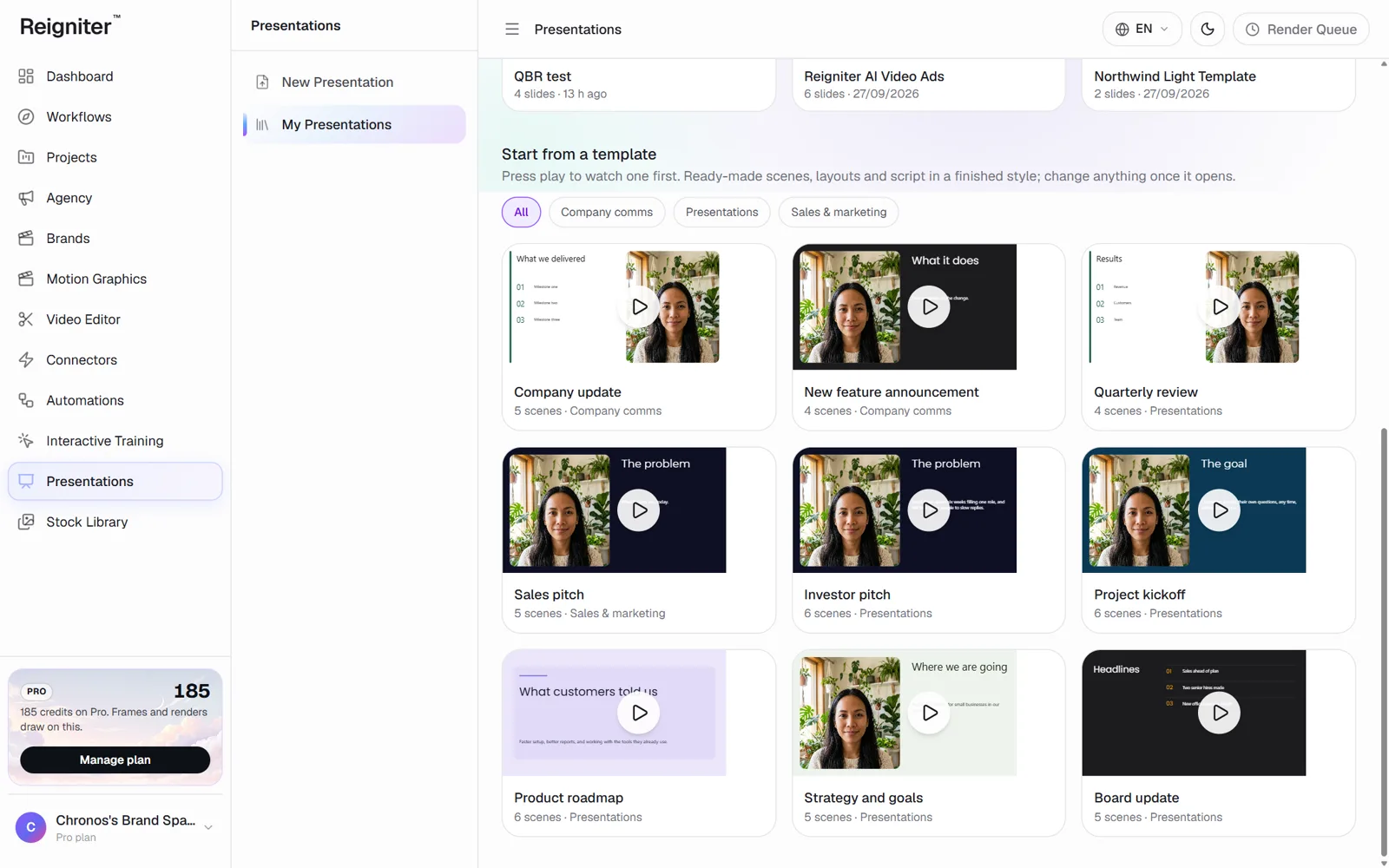
Start a presentation
Section titled “Start a presentation”-
Choose one of these:
- Import a PowerPoint: every slide becomes a scene, speaker notes become the script, and the theme becomes the look.
- Start from your template: only your template’s colours and fonts, on a blank presentation.
- Start from scratch: a blank deck. Add slides as you go.
- Start from a template: press play on an example to watch it, then select Use this template.
-
The presentation opens in the editor. Each slide is a scene in the list on the left.
Edit a slide
Section titled “Edit a slide”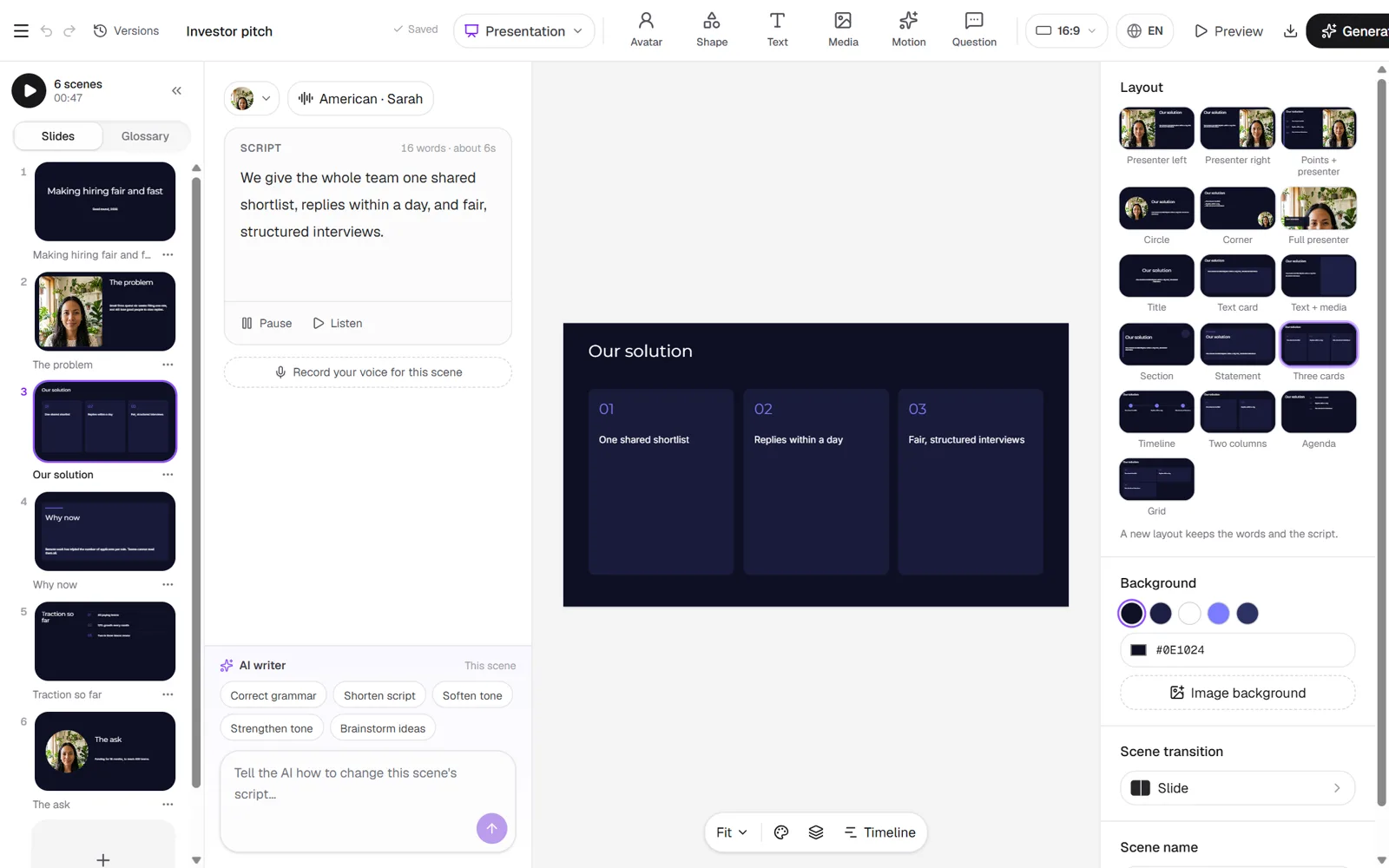
- Script: type what the presenter says for that slide. Select Listen to hear it in the chosen voice.
- Layout: pick one on the right. Business layouts include Section, Statement, Three cards, Timeline, Two columns, Agenda and Grid.
- Avatar: choose a presenter, or use layouts without one.
- Timeline: animate any part of the slide with keyframes.
Export
Section titled “Export”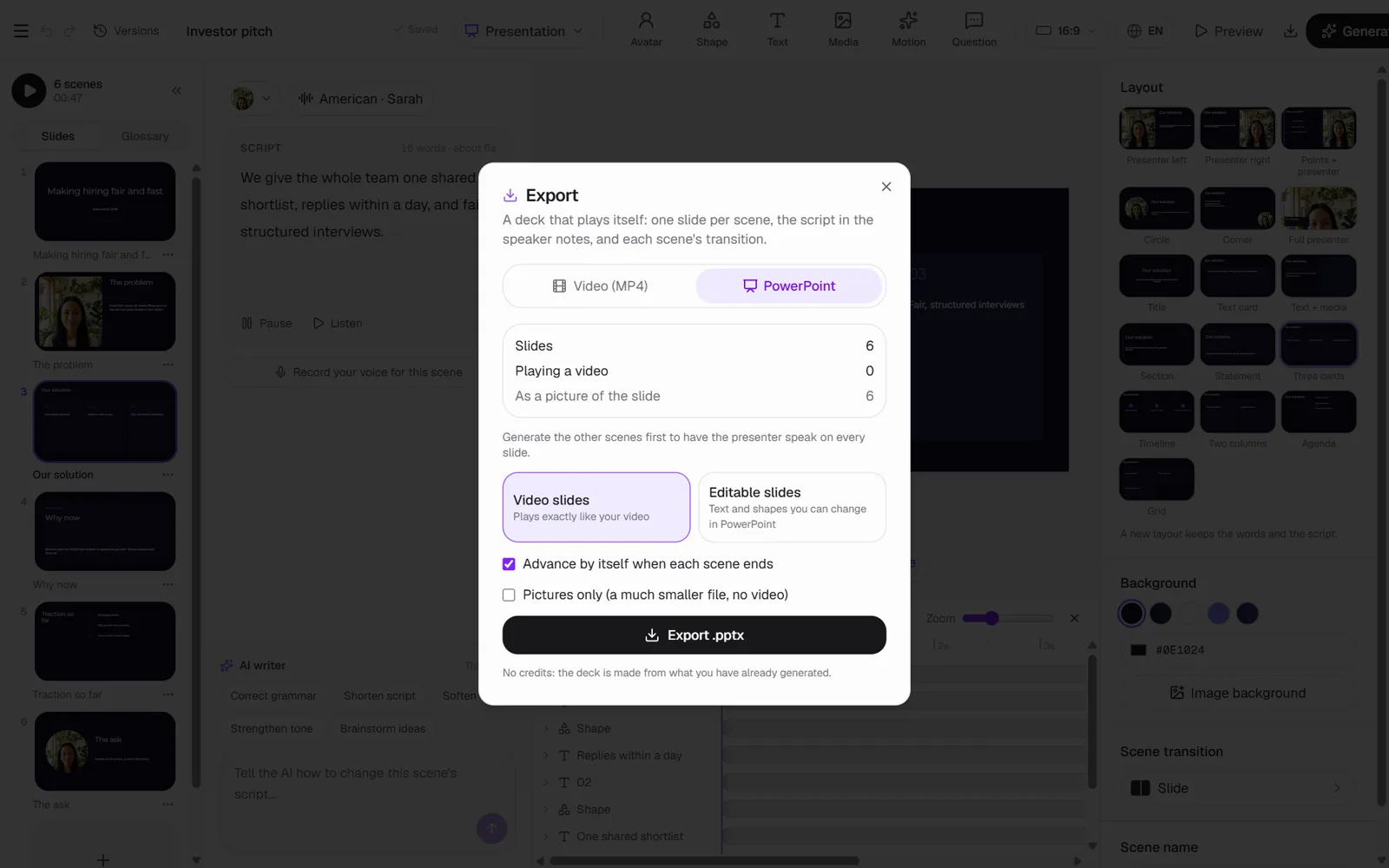
-
Select Export at the top.
-
Choose PowerPoint or Video (MP4).
- PowerPoint: Video slides play exactly like your video. Editable slides keep text and shapes you can change in PowerPoint.
- Video: every scene in order, with a transition, optional music and optional Captions.
-
Select Export.